This dashboard started as a small hardware project: an RP2040 driving a 4-inch, 480 × 320 TFT display with an ILI9488 controller over SPI. The aim was to make computer activity visible on a separate screen, with enough movement to see changes as they happened.
The current version runs on Linux and can display measurements from the local machine or another Linux host. A grid of coloured circles shows individual logical CPU loads, alongside memory, swap, disk, filesystem, and network activity. The dedicated display is a 12.3-inch, 1920 × 720 stretched IPS monitor, now running the dashboard fullscreen.
Source code and setup instructions: lonezor/live_performance_dashboard on GitHub.
The Dashboard in Motion
The recording below shows the dashboard running in a Linux desktop session. It includes the local Raspberry Pi and remote-source tabs, with terminal activity above the dashboard. This earlier screen recording shows the software in use; the final video at the end of the post shows it running fullscreen on the physical 12.3-inch display.
The Original SPI Prototype
The first version connected a 4-inch KMRTM40045-SPI TFT module directly to a Waveshare RP2040-ETH. The display uses an ILI9488 controller and was initialized in 480 × 320 landscape mode. Only the display interface was needed; there was no touch-screen wiring or MISO connection.
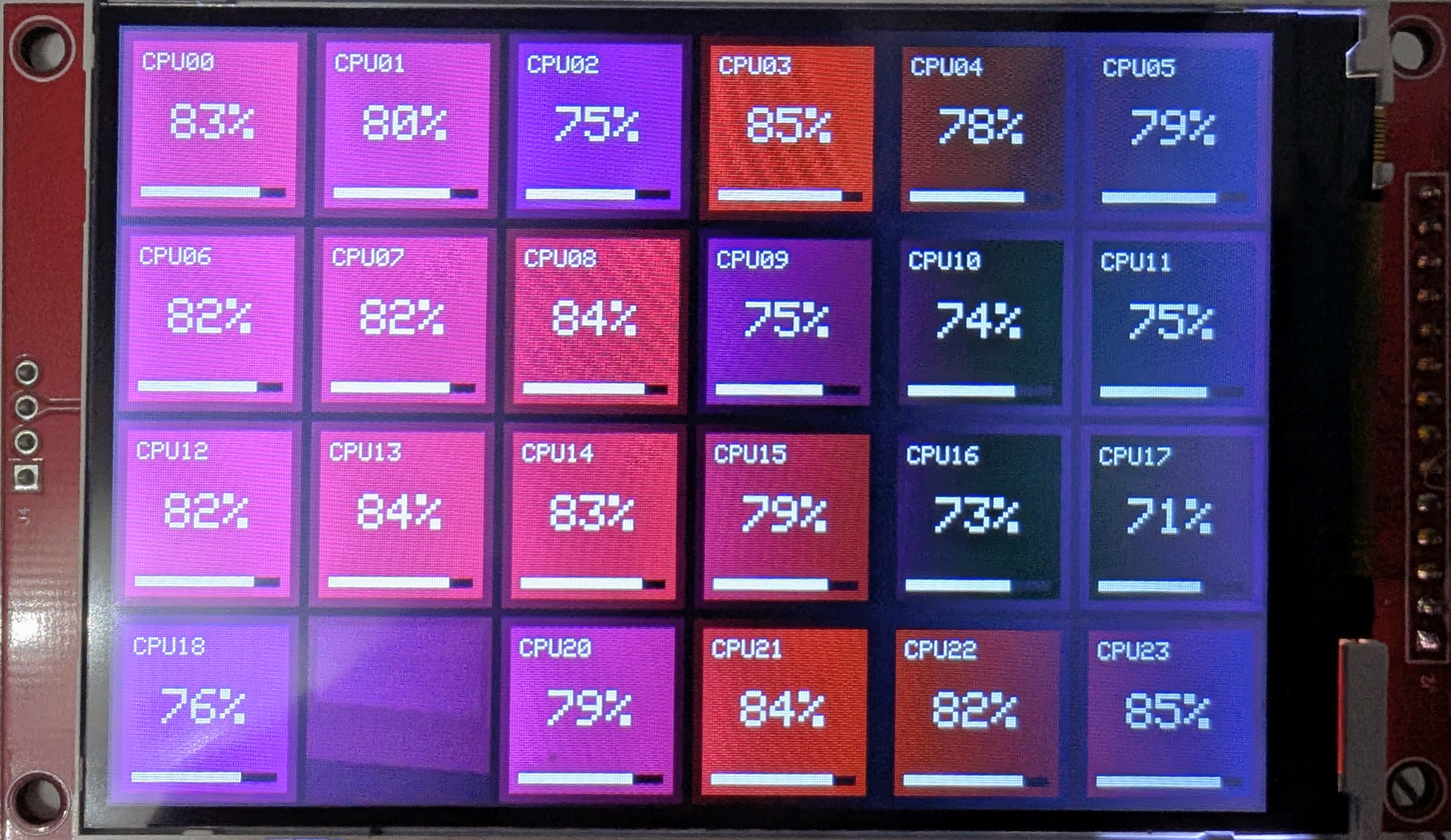
The prototype running the detailed tile view. These values were generated by the firmware to test the animation; they were not yet live CPU measurements received over Ethernet. The second tile from the left in the bottom row was photographed partway through an update: its background has been redrawn, but its label, percentage, and load bar have not yet appeared. This visibly incomplete tile shows the effect of the limited update speed—the individual drawing steps remain on screen long enough to be caught in the photograph.
Wiring the Display
| Display pin | RP2040-ETH connection |
|---|---|
| VCC | VBUS |
| GND | GND |
| CS | GP5 |
| RESET | GP3 |
| DC | GP8 |
| SDI | GP7 |
| SCK | GP6 |
| LED | GP2 |
Finding the Visual Style
The RP2040 successfully rendered both static and animated graphics. The firmware divided the screen into a 6 × 4 grid representing 24 vCPUs, and four visualization modes were explored.
| Mode | Appearance and result |
|---|---|
| Detailed tiles | CPU labels, percentages, borders, and load bars, as shown in the photograph. |
| Solid rectangles | Edge-to-edge colour without text or borders. Removing the black gaps made sequential updates less noticeable. |
| Crisp circles | Coloured circles on black, approximately 75% of each square's width. This became the preferred appearance. |
| Feathered circles | A narrow, two-pixel softened edge. It worked, but the dim edge pixels made the circles look slightly low-resolution. |
The heat palette moved from black through dark blue, blue, purple, and crimson to bright red. Each simulated CPU followed a bounded random walk, so its load evolved from its previous value instead of jumping to unrelated random numbers. This gave the animation the appearance of metal gradually heating and cooling.
The early demo used deliberately slow interpolation: approximately 30 seconds for heating and 45 seconds for cooling, with new targets every five seconds and display work scheduled every 300 milliseconds. Those settings belong to the SPI prototype; the current Linux dashboard uses much faster sampling and animation. A CpuLoadFrame structure was also prepared so the simulated values could later be replaced with measurements received over Ethernet.
Making Sequential Updates Less Obvious
Drawing tiles from left to right exposed the time needed to transfer each update. The firmware randomized the tile order with a Fisher–Yates shuffle, redrew only tiles whose quantized colour level had changed, and limited each rendering pass to three detailed tiles or four simpler tiles.
These techniques reduced the work sent over SPI and made the remaining delay less distracting. Touching rectangles removed the black gaps that emphasized the update order. Slow thermal interpolation softened differences between tiles, while crisp circles needed fewer drawing operations than tiles containing text, borders, and bars.
The Bandwidth Limit
I achieved stable operation at both 10 MHz and 20 MHz SPI clock speeds. The remaining limitation was moving pixel data to the display. The chosen ILI9488 18-bit SPI driver effectively transferred three bytes per pixel, making a complete image:
480 × 320 × 3 = 460,800 bytes
460,800 × 8 = 3,686,400 bits
At 10 MHz, the pixel payload alone takes approximately 0.37 seconds to transfer, corresponding to a theoretical maximum of about 2.7 full frames per second. At 20 MHz, the equivalent figures are about 0.18 seconds and 5.4 frames per second. These are transfer-only ceilings; protocol overhead and drawing separate shapes reduce the practical rate.
Partial updates helped, but the complete heatmap was then spread across several passes. Sending four tiles every 300 milliseconds takes roughly 1.8 seconds to visit all 24 tiles. Detailed mode, at three tiles per pass, takes about 2.4 seconds. A tile whose colour had not changed could be skipped, but the changing tiles still did not appear simultaneously.
Fast animation therefore revealed the sequential updates, and text, borders, and layered effects added transfers. The tested setup had no double-buffered or synchronized presentation path. Raising the SPI clock improved throughput but reduced the signal margin with movable jumper wiring; 10 MHz offered more reliable operation at the cost of longer transfers.
Ethernet could deliver the small vCPU measurement frames much faster than the panel could display their changes. The RP2040’s computation was not the limiting factor in this experiment. Moving to HDMI removed that SPI display path and made a larger, faster dashboard with memory, storage, and network measurements practical.
What the Dashboard Shows
Each circle represents one logical CPU. Its colour moves through a shared heat palette from black and blue through purple and crimson to red as utilization rises. A faint outline keeps idle CPUs visible, and the heading reports the number of logical CPUs and their average load.
The remaining measurements are arranged in three panels:
| Panel | Measurements |
|---|---|
| Memory and swap | Usage bars, percentages, and used/total capacity. Systems without swap show a disabled state. |
| Disk and filesystem | Root-device busy percentage, read and write throughput, and root-filesystem capacity usage. |
| Network | Upload and download rates, interface name, reported link speed, TCP socket count, and UDP socket count. |
Disk activity and filesystem capacity answer different questions: how busy the storage is, and how full it is. If the root device has no accessible disk counters, the I/O values show as unavailable rather than suggesting that it is idle. Network traffic covers the selected interface, including local-network transfers; it is not restricted to Internet traffic.
The interface currently focuses on CPU, memory, storage, and networking. GPU monitoring is not implemented.
Reading Linux Counters and Drawing the Interface
The application is written in Python, using GTK 3 for the window and Cairo for drawing. It reads the Linux counters directly: /proc/stat for CPU time, /proc/meminfo for memory, /proc/diskstats for disk activity, and /proc/net/dev for transferred bytes. Filesystem capacity comes from statvfs, while the network interface’s reported link speed comes from sysfs when available.
CPU utilization and transfer rates are calculated from differences between successive counter readings. By default, measurements are sampled every 50 milliseconds, while the drawing loop targets 60 frames per second. Time-based interpolation smooths the transition between samples, so the display can move fluidly without pretending that every rendered frame is a new measurement.
Under Sway, the application runs through Xwayland and can move itself to a secondary output and enter fullscreen. It prefers a 1920 × 720 display. It can also run in a resizable window, which is useful while developing the layout or using another X11-capable desktop.
One Display, Several Linux Machines
A small remote agent uses Python’s standard library to collect the same types of measurements on another Linux host. It sends versioned JSON snapshots over TCP to the dashboard. The agent handles reconnection, and the receiving application replaces the complete measurement source when a remote machine is selected.
The source strip distinguishes LOCAL from REMOTE machines. Tabs can be selected with a pointer or cycled with the keyboard. Remote tabs use a stable hostname order: incoming packets update the numbers without moving the controls around. The whole source strip now shares the Sway header’s dark grey background. Bold, near-white text and a white underline identify the selected source. The dashboard always starts on LOCAL and stays there until a remote tab is selected.
If remote data becomes stale, the dashboard returns to local measurements after the configured timeout, which defaults to two seconds. The connection is intended for a trusted LAN or VPN; the current protocol has no built-in authentication or encryption.
Adapting to Different CPU Counts and Window Sizes
A fixed grid looks reasonable on one computer and awkward on another. The dashboard chooses a layout that maximizes the circle size in the available space. It allows a few empty cells when that produces a better result, so CPU counts such as 7 or 13 do not collapse into a long, thin row. Incomplete rows are centred.
Wide windows place the CPU grid beside the metric panels. Narrow or portrait windows stack the grid above them. The layout adapts when the window changes size or a different machine is selected. Headless rendering checks cover a range of window sizes and CPU counts up to 4,096; this checks layout behaviour, rather than establishing a performance guarantee for a machine with that many CPUs.
Secondary text has also been enlarged and brightened. Capacity figures sit beneath their bars, where they have more horizontal room. Long device and interface names are shortened to fit their columns, and larger values use TB, GB/s, or Gbps where appropriate.
The Dedicated Wide Display
The finished setup uses a 12.3-inch IPS stretched-bar monitor connected over HDMI. Its advertised specifications are:
| Feature | Specification |
|---|---|
| Panel | 12.3-inch IPS LCD, 1920 × 720 resolution |
| Connections | HDMI and USB-C, with advertised single-cable USB-C video and power support on compatible hosts |
| Brightness and viewing angle | 300 nits and 178° viewing angles |
| Contrast | 1200:1 |
| Construction and mounting | Metal enclosure and 75 × 75 mm VESA mounting |
| Audio | Built-in speakers |
The wide format provides space for the CPU grid and the three metric panels without taking the shape of another full desktop monitor. Although the product listing promotes Windows and AIDA64 use, this project supplies its own Linux monitoring software.
The video below shows the physical display running the dashboard fullscreen, with the local Raspberry Pi selected. The four CPU circles and the memory, disk, filesystem, and network panels update together on the wide screen.
The second screen sits below the main monitor, and Sway’s output layout matches that arrangement, so moving the pointer down reaches it. A Dashboard OFF/ON button beside the volume control opens or closes the application. It is off by default; when opened, it uses the wide HDMI display in fullscreen if available and otherwise tiles on the main monitor.
Matching the dashboard’s upper strip to the Sway bar background makes it feel like an extension of the desktop theme.
A Note After Longer-Term Use
After running the dashboard continuously for a longer period, I reduced the drawing rate from 60 to 30 frames per second. The lower rate still looks smooth on the dedicated display while reducing the CPU time spent repainting a monitoring interface.
I also converted the supporting memory, storage, and network statistics to grayscale. Most of the time the monitored system is under light load, which placed these measurements in the darker end of the heat palette and made them harder to read. Neutral grey bars and text provide clearer contrast, while the CPU circles retain the heat palette where changes in load are useful to see.
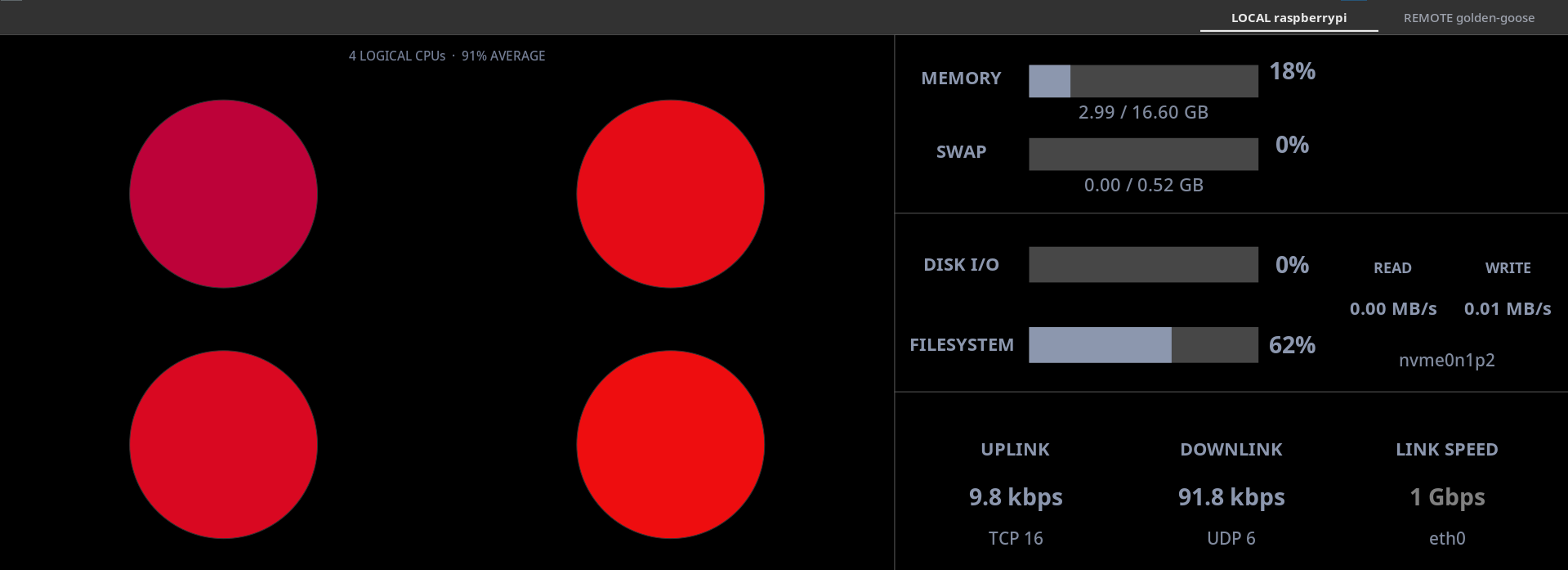
The current dashboard running at 30 FPS with the revised grayscale statistics.